LEVERLESS CONTROLLERS1
SAPPHIRESapphire
Precise inputs. Complete control.
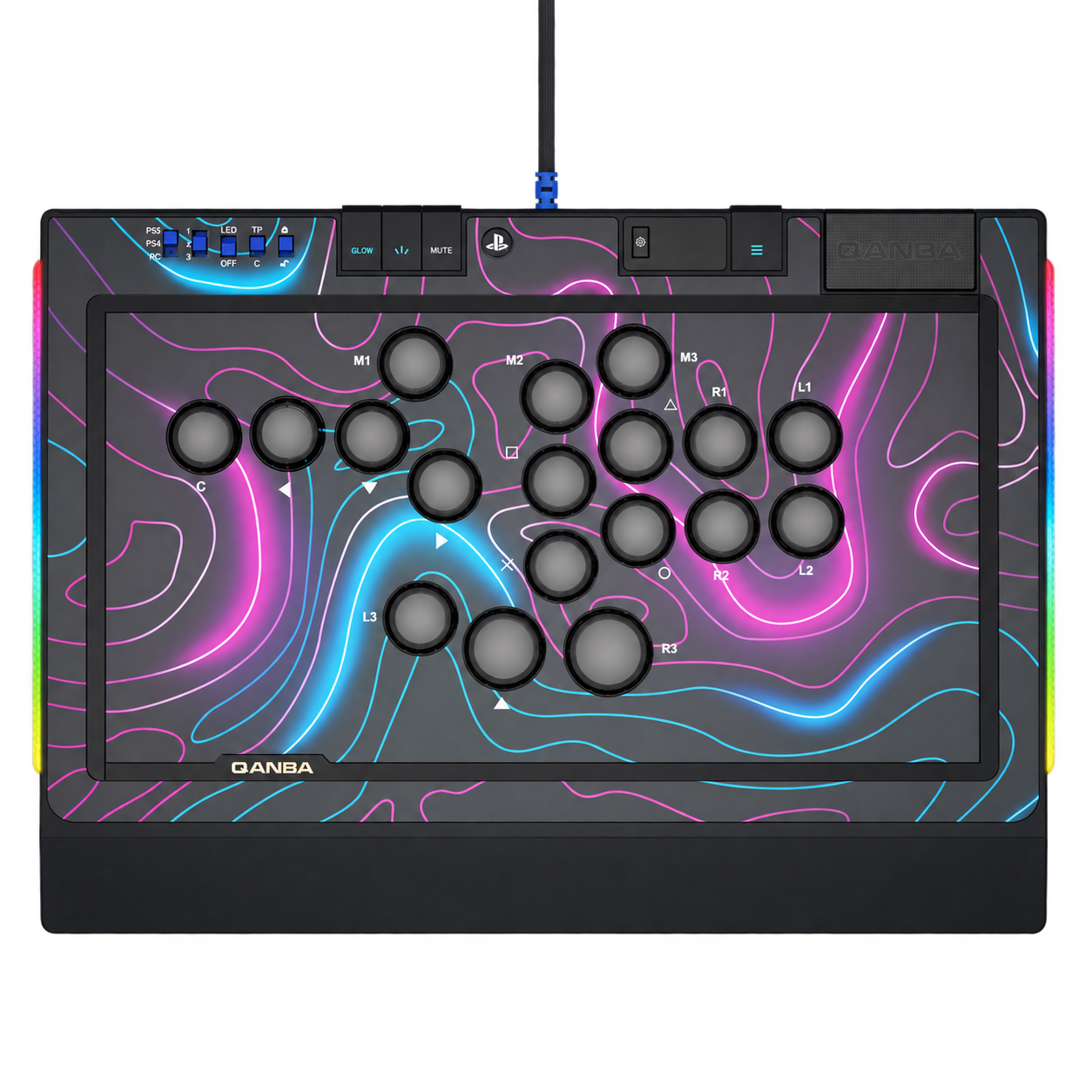
PS5 / PS4 / PC18 buttons · 3 profiles
Connect your controller, customize your setup, and make every input count.
Precise inputs. Complete control.
Set the mode switch to PC and connect the controller via USB.
Configure in your browser and update firmware through the local service.
Select the connected device and matching firmware. Keep USB connected throughout the update.
Scan the device to match Key / No_Key automatically. The variant is never inferred from the operating mode.
Run the local update service to install firmware.
Open the local website using the startup script.
Close other update tools. Disconnect USB, hold OPTIONS while reconnecting, then release it. Scan devices and choose the USB drive update interface. PC updates wait for the update interface to reconnect.
V1.26 Key is selected by default. The device check selects the matching Key or No_Key package.
Keep USB connected during the update, then reconnect and read the version to verify completion.
Configure and save in PC mode. Select the same 1/2/3 profile on PS4 or PS5.
Switch the controller to PC mode and connect USB. Open this page in Chrome or Edge, then allow access to the QANBA device.
Download and extract Quanba_3in1_V126.zip, then run Quanba_3in1_V126.exe. Hold OPTIONS while reconnecting USB; when ONLINE is green, click DOWNLOAD. Wait for 100% and reconnect USB normally.
Open Button mapping, select profile 1/2/3, edit the physical buttons and SOCD, then save to the device. Unassigned buttons have no backlight.
Open Lighting to read the current settings. Choose an ambient strip mode or set button colors; CAPCOM Juri users can apply the purple preset. Save, then reconnect in PC mode to verify the colors remain.
Press the controller buttons to check the live view and input log. PS4 and PS5 modes support button testing, but do not send lighting or switch positions to this page.
Current browser session. Update progress is reported by the local QANBA service.